Create a GPX route — for free
Motum can follow a planned route and brief you on every climb ahead with ClimbPro. Here's how to draw a route in the free online editor gpx.studio and load it into Motum.
What you'll need: a web browser (computer is most comfortable, but a tablet works too) and about five minutes. No account, no payment — gpx.studio is free and open source. Motum has no affiliation with gpx.studio; it's simply a tool we like. Their official documentation lives at gpx.studio/help.
Draw your route
1 Open the app
Go to gpx.studio and click the App button — or jump straight in by typing gpx.studio/app into your address bar. The editor runs entirely in your browser; there is nothing to install and no sign-up.
2 Find where your route will be
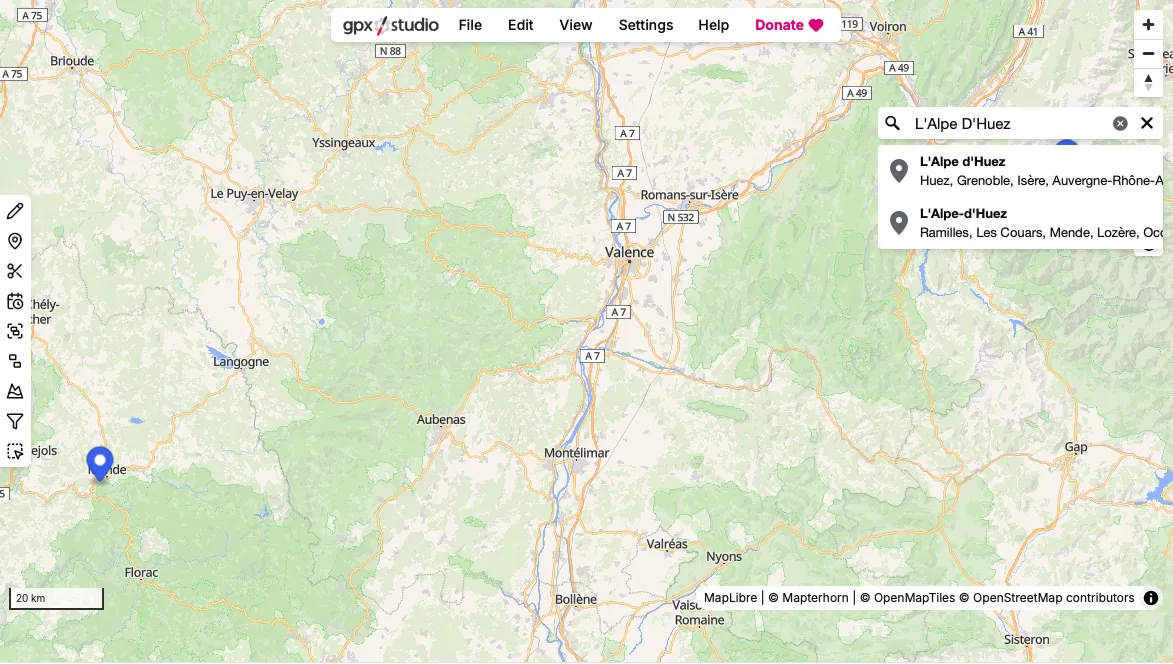
Use the search box in the top-right corner of the map: type a town, mountain, or address and pick a result from the list. The map jumps straight there — much faster than panning across half a continent.
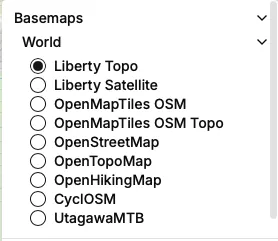
3 Pick a base map (optional)
The layers panel on the right side lets you switch base maps: Liberty Topo is the default, and you can choose alternatives like CyclOSM (great for cycling), OpenTopoMap, OpenHikingMap, or satellite imagery. There are also overlays such as Waymarked Trails for hiking, cycling, and MTB routes, plus points of interest.
4 Create a new file
In the top menu, choose File → New (or press Ctrl +). An empty file is created and the route-planning panel opens on the left.
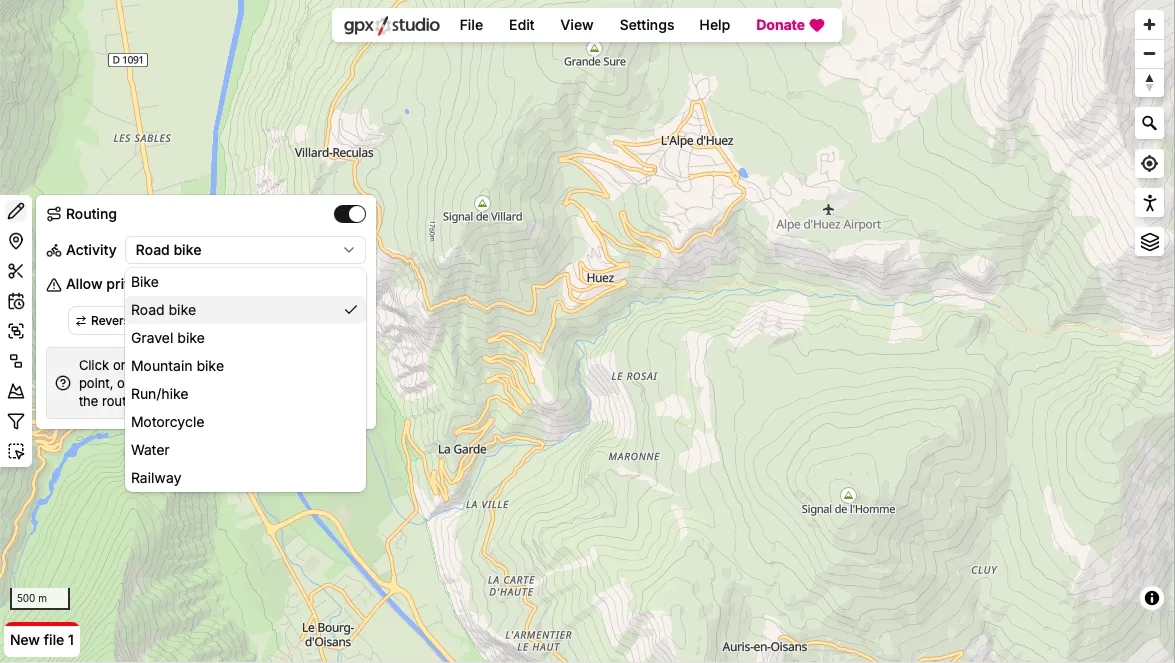
5 Set up routing for your sport
In the route-planning panel, leave Routing switched on — your clicks will then snap to roads and paths, like turn-by-turn directions. Pick your Activity: Road bike, Gravel bike, Mountain bike, Run/hike, and more — the router prefers the right kind of roads for each. You can also allow private roads, and the Reverse, Back to start, and Round trip buttons are here when you need them.
6 Click the map to draw
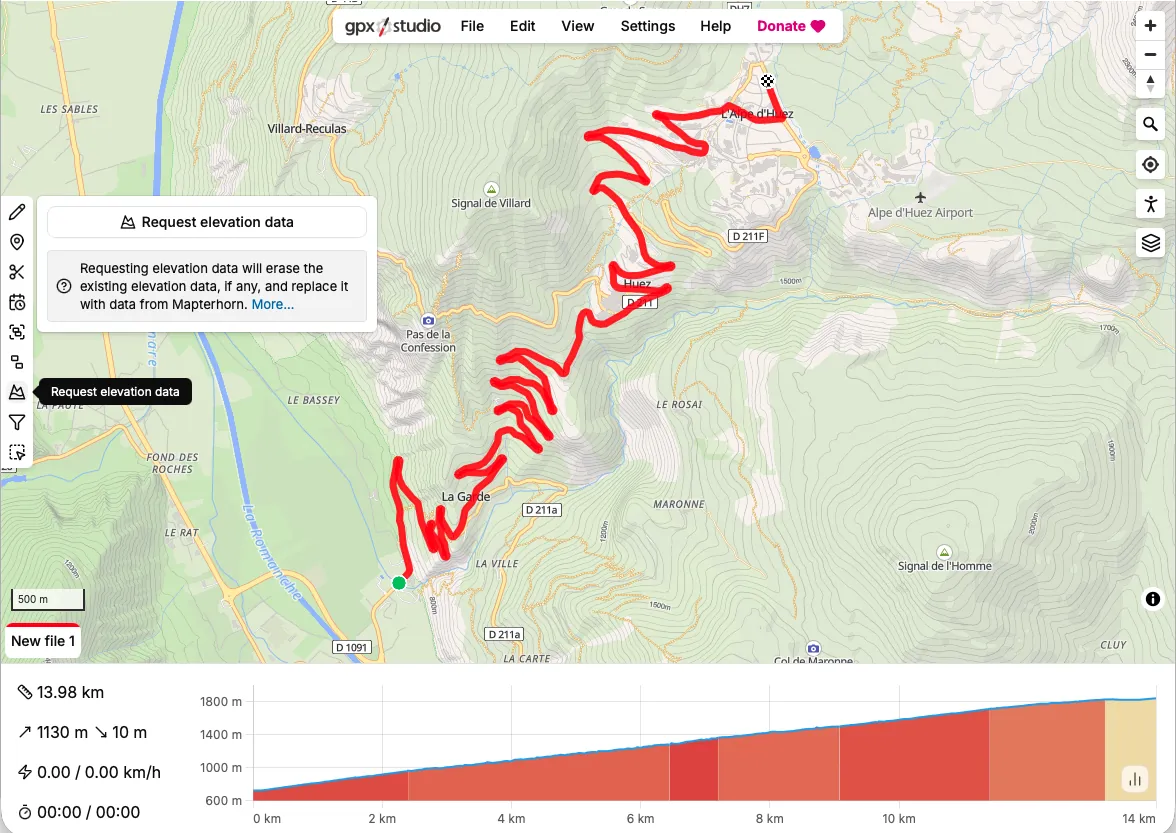
Click your starting point, then keep clicking along the way you want to go. Each click adds an anchor point and gpx.studio fills in the road between them. Drag any anchor to reroute, or drag the route line itself to add a new anchor mid-way. Riding a loop? Draw the far half and hit Back to start, or let Round trip do the work. Undo is always there (Ctrl Z).
7 Check elevation — and refresh it if needed (optional)
The bottom panel shows total distance, elevation gain, and the full elevation profile — the same climbs ClimbPro will detect later. Routes drawn in gpx.studio already come with good elevation data, so you usually don't need to do anything here. If the profile looks wrong or the elevation is missing (common with GPX files from other sources), the Request elevation data tool in the left toolbar replaces the file's elevation values with fresh terrain data. Note that it overwrites any existing elevation data in the file.
8 Name your route
Choose Edit → Info... from the top menu and give the route a name (and a description if you like). This is the name you'll see in Motum's route preview, so make it recognizable — "Alpe d'Huez loop" beats "new file 1".
9 Export the GPX file
Choose File → Export and download the file. That's it — you now have a standard GPX route file, free of charge.
Load it into Motum
10 Get the file onto your iPhone
Send the .gpx file to your iPhone any way you like: AirDrop it from your Mac, save it to iCloud Drive, or email it to yourself and save the attachment to the Files app.
11 Attach the route to your ride
Open Motum, select cycling on the dashboard, and tap Load route (optional). Pick your GPX file from the Files browser. Motum shows the route's elevation profile so you can confirm it's the right one — then start your ride. ClimbPro will brief you on every climb along the route as you approach it.
Questions?
Check the support page or email us at angel@angelterziev.com — we read every message.